
Reeling off a long WiFi password to every visitor gets old fast. Here’s a simple way to turn your guest WiFi details into a QR code people can scan to connect in seconds — plus an important reminder about keeping that guest network separate from the rest of your business.
Step 1 — Make a note of your WiFi Name (SSID) and Password
Find that piece of paper you have lying around somewhere in the boardroom with the WiFi name (which is also known as the SSID) and the password. You’ll need these details to hand for the next step.
Step 2 — Generate your QR code
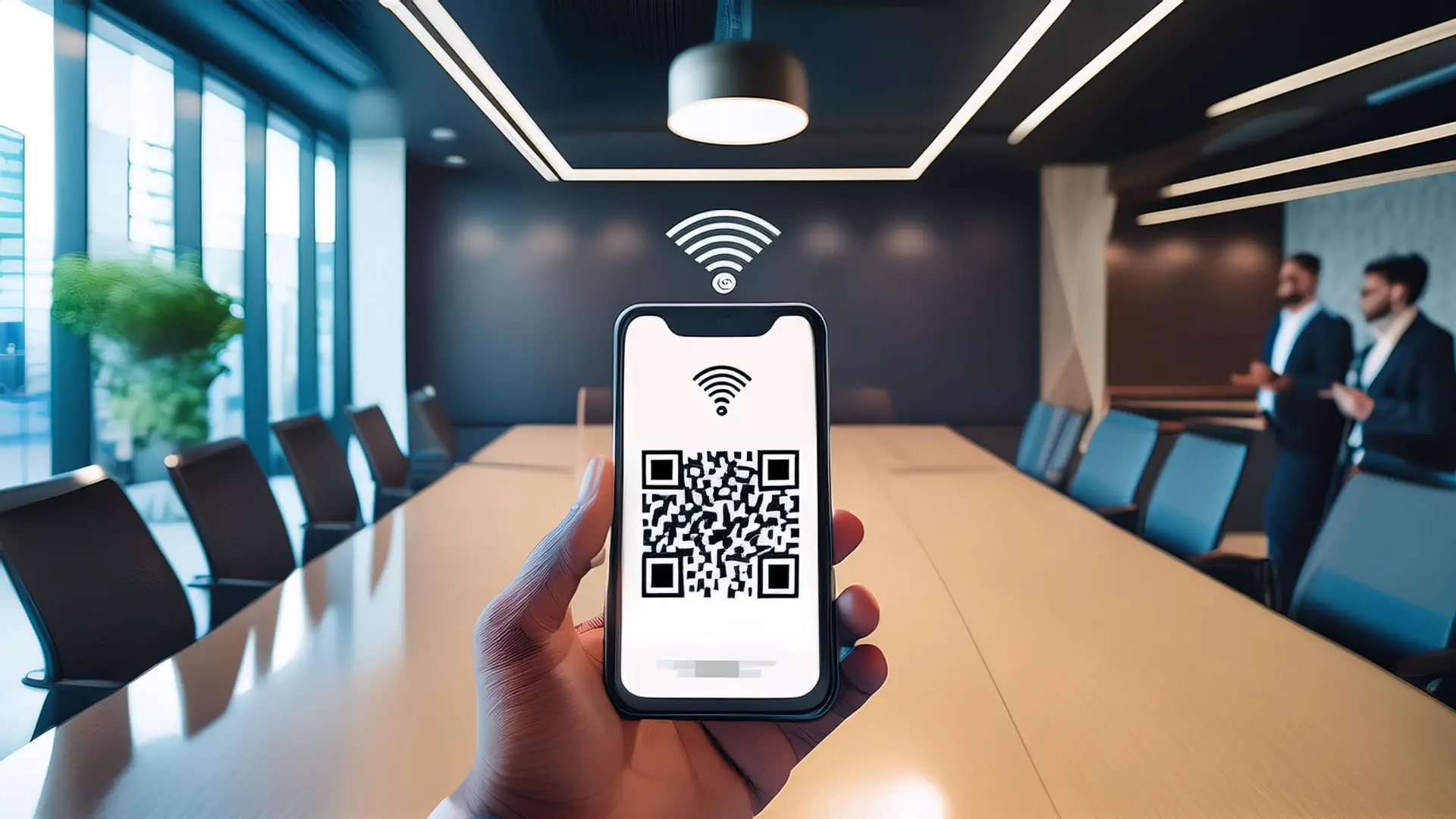
Pop your network name and password into the generator below, choose your security type, and your QR code appears instantly. When you’re happy with it, hit Download PNG to save the image.
It all happens right here on your device — nothing is sent anywhere, so your WiFi password stays private.
Step 3 — Add the WiFi name and password onto a document with the QR code
Although you’ve now got a really simple way for guests to connect to the WiFi network using most mobile phones, this will not help for laptops and some other devices. They’re still going to need to do it the old fashioned way, so make sure you’ve still got the WiFi name and password written on the sheet for those who can’t use the QR.
Step 4 — Print off your QR code document
Once you’ve followed all the above steps, it’s time to print it off or add it as a background wallpaper for your boardroom TV — or any other fancy way you want to give it to your guests.
Step 5 — Your guests just scan the code
When a guest arrives at your office and asks to connect to your guest WiFi from their mobile, just tell them to open their camera app and point it at your QR code. The look of amazement when they instantly connect — and then tell you that was a lot easier than most places — will make you feel a little warm and fuzzy. They’ll probably ask how you did it too, so when they do, be sure to send them to this post.
Final tip — Keep your guest WiFi separate from your staff network
It’s critically important from a security perspective to ensure that any visitor or guest to the business does not have network access to your own internal systems and servers. This is why you should always have a separated guest wireless network which cannot see any devices on the production network. If you’re unsure on this, then feel free to ask one of our team and we’ll be able to help.